
D-pad pointer control
Use the arrow keys to move the pointer. Press the center button to click. Scroll by moving the pointer to the edge of the screen. Your thumb stays on the keypad.

100,000+ Downloads 3.7 Rating 466 Reviews
You switched to an Android dumbphone, but you still reach for the touchscreen for half of what you do. Clicky puts a mouse pointer on your screen. Move it with the D-pad, click with the center key, scroll at the edges, and open apps without touching glass. Works on flip phones, bar phones, and big-screen smartphones too.
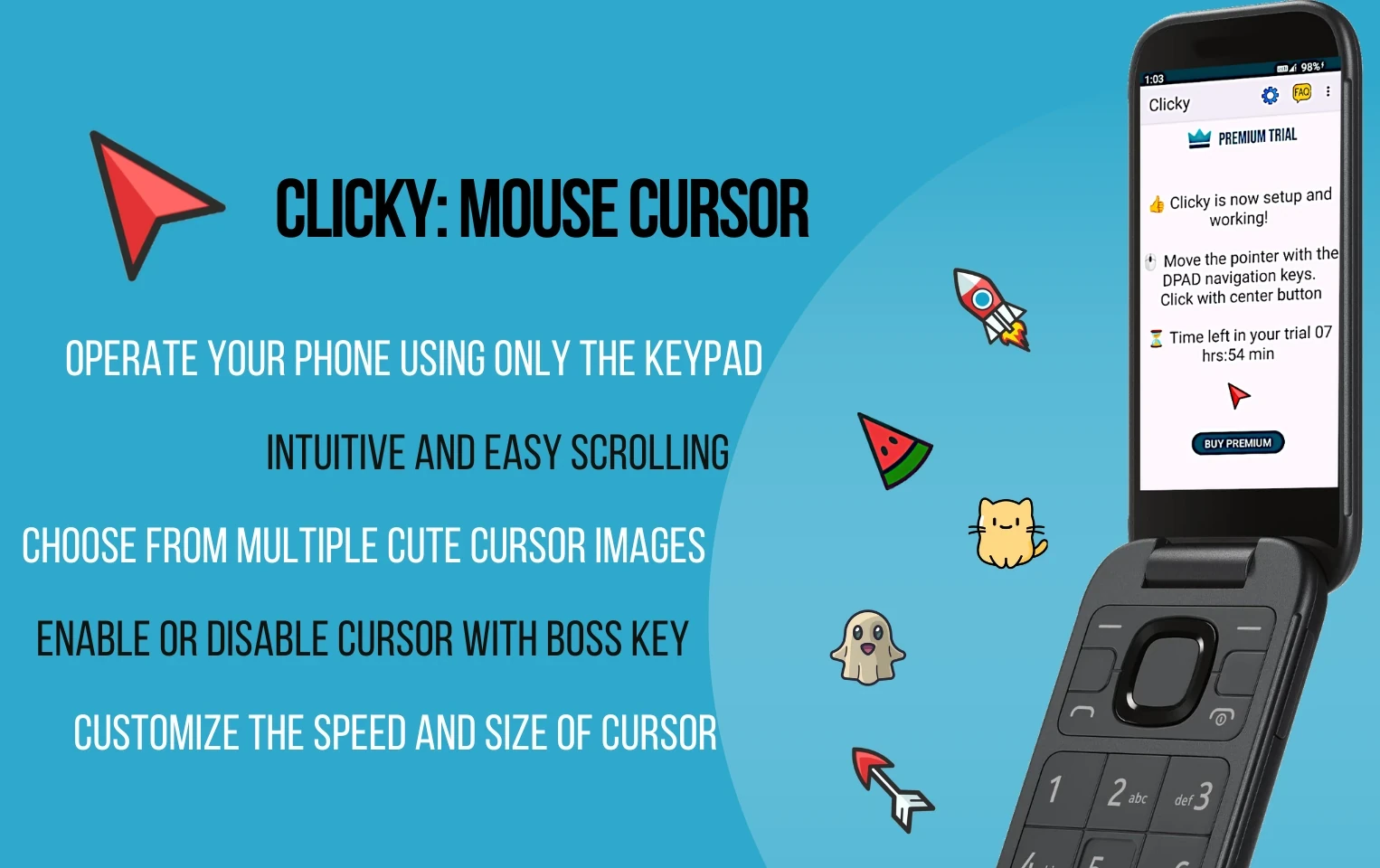
Navigate and select items on screen using your keypad on dumbphones, or one hand on a smartphone.
Use the arrow keys to move the pointer. Press the center button to click. Scroll by moving the pointer to the edge of the screen. Your thumb stays on the keypad.
Swipe from the left or right edge to show an on-screen circle. Drag it to move the pointer and tap to click. Handy on large screens when you cannot reach the top.
Pick from built-in pointer styles or upload your own PNG. Adjust pointer size and movement speed until it feels right on your phone.
Same app, two ways to navigate depending on your phone.
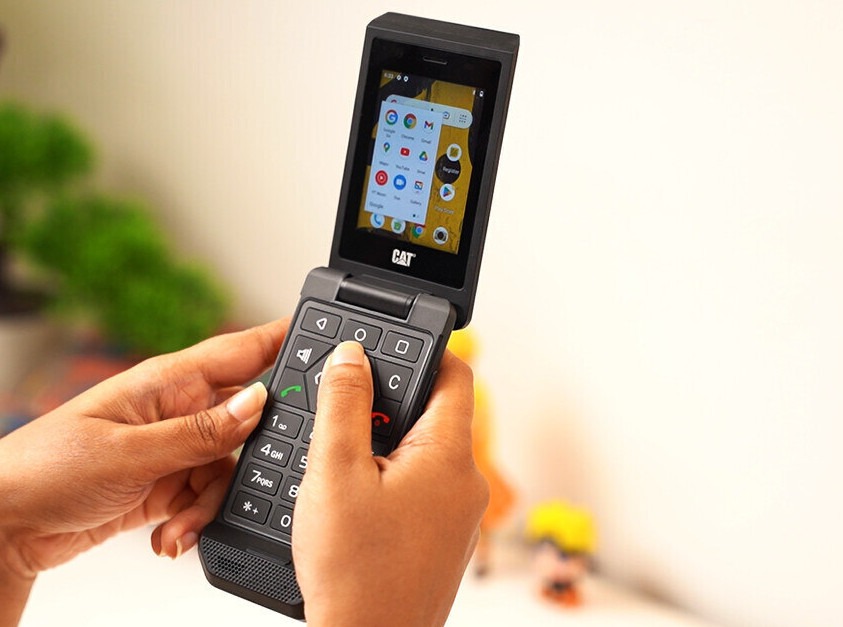
For flip phones and bar phones with a hardware keypad. Gloves, big fingers, or a tiny screen? No problem.
One-handed control for large screens. Reach menus and buttons without stretching across the display.
From the Play Store listing and what dumbphone users ask for most.
Use D-pad keys to move the pointer and the center key to click. Built for dumbphones with physical buttons.
Move the pointer to the top, bottom, left, or right edge and Clicky scrolls the page. No touchscreen needed.
On smartphones, swipe from the edge to show a draggable circle that controls the pointer with one hand.
Choose from a variety of built-in cursors or upload your own PNG (around 192×192 px works well).
Adjust pointer size and how fast it moves until navigation feels natural on your device.
Open apps, browse the web, tap buttons, and navigate menus across your whole phone.
Minimal resource usage so performance stays smooth even on older dumbphones.
Alternative navigation for anyone who prefers hardware controls or needs help reaching touch targets.
Watch how D-pad pointer control works in practice.
Real reviews from Google Play. 100,000+ installs.
Quick answers about Clicky on Android.
Clicky is an Android app that overlays a mouse pointer on your screen. On dumbphones you move it with the D-pad and click with the center key. On smartphones you can use an on-screen circle for one-handed control.
Yes. Clicky is popular on the CAT S22 Flip. Use the arrow keys to move the pointer, the center button to click, and edge scrolling to move through long pages without touching the screen.
Clicky uses Android's Accessibility service to draw the cursor overlay, simulate taps and swipes, and pause the pointer when the keyboard opens. It only uses these permissions for core navigation. See our Privacy Policy for details.
Yes. Pick a built-in style or upload your own PNG (about 192×192 px). Open Clicky settings to change pointer appearance, size, and speed.
Clicky does not collect personal data. It needs Accessibility permissions to function, but those are used only to enable pointer control. Always review app permissions on your device.
Clicky is free to download on Google Play with optional in-app purchases. Install it, enable the Accessibility service, and start navigating with your keypad.
Mouse cursor for Android dumbphones and smartphones. Navigate with your D-pad, click without touching the screen.